Review a pipeline change with Proof
Before applying a pipeline change, you may want to know which parts of its definition Braidplane can verify and which still need attention. Proof records that assessment for one exact Git commit and one project/environment target. Its receipt lets you inspect the evidence behind each result.
You can read this guide without an account. Using Proof requires a Braidplane workspace, a managed GitHub or GitLab repository, and permission to read the pipeline.
Proof checks the claims listed in a receipt using static, cached or live metadata. Merge, deployment and pipeline execution remain explicit actions.
What an assessment covers
A candidate is the pipeline definition at the exact head commit of a pull request or merge request, evaluated against a configured project, environment, target ref, and pipeline path. Changing the commit or target requires a new assessment; an older result cannot stand in for the new change.
A claim is one part of the pipeline's declared behavior that Braidplane evaluates, such as a binding, capability, or field/type requirement. Each claim records the evidence it requires, the evidence actually available, its verdict, and any diagnostic or next action. The overall verdict summarizes these claims; always inspect gaps before deciding what to do.
A receipt captures the candidate, target, claims, and evidence at assessment time. Captured content is immutable. New evidence creates a new receipt; reads can show that an old result is stale or superseded without rewriting it. Receipts are protected workspace resources, even when a Git result links to one.
Configure assessments
Ordinary repository access works independently of Proof. An administrator with data-source and pipeline management permissions can enable assessments:
- Connect a managed GitHub or GitLab data source and configure the project's Git backend for that repository.
- Open Git integrations → Proof assessments in organization settings and choose Configure Proof. You can also open Proof configuration on the Git data source.
- Check repository readiness. Open Assessment targets, then enter the repository-relative pipeline paths for the intended project/environment targets. Leave unused targets empty; each selected target must match the project's configured repository and tracked ref.
- Select Enable Proof assessments. In Publication options, optionally select informational GitHub checks or GitLab notes.
- Save the configuration. Resolve setup warnings before expecting assessments. GitLab webhook setup may require an authorized provider connection with webhook-management permission; use the offered retry after repairing access.
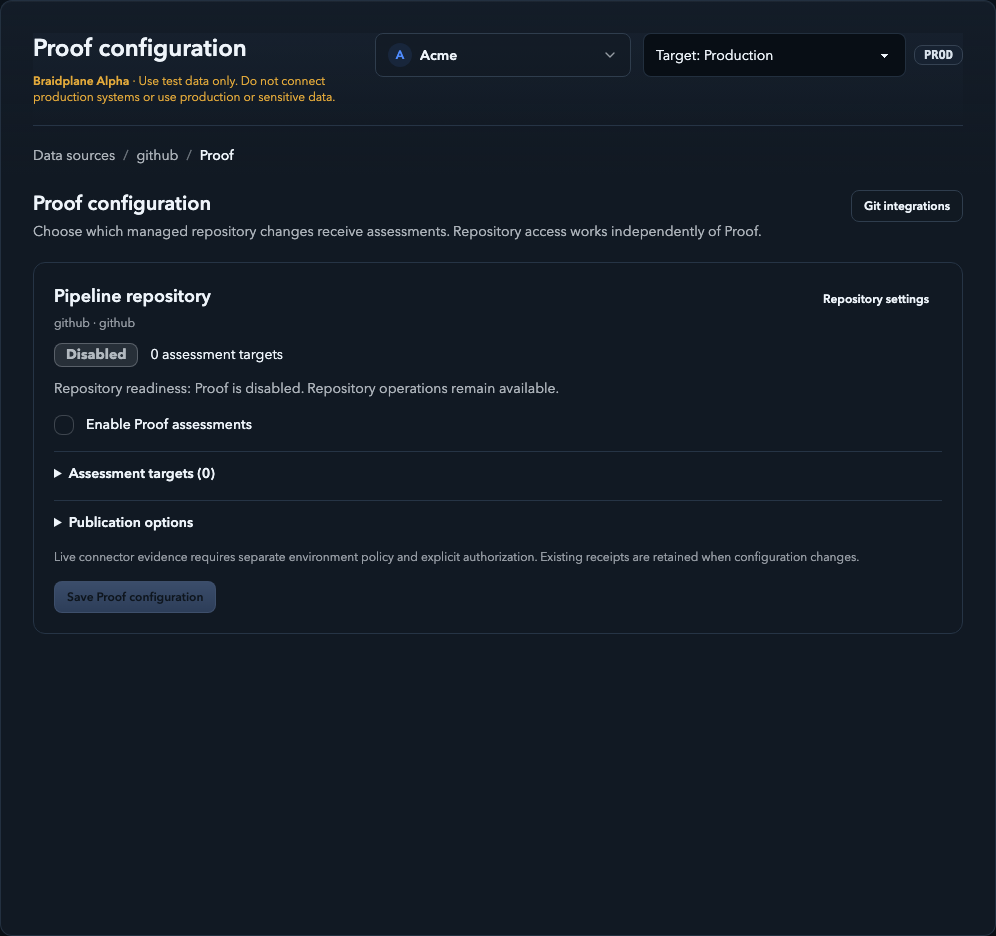
Proof configuration with synthetic data, captured locally on 6 October 2026. Assessments are disabled in this example.
Assessment enablement, Git publication, and live connector evidence are separate controls. Live evidence needs deployment enablement, an environment policy, and explicit authorization. Enabling assessments or reading a receipt does not authorize or start a live observation.
Disabling Proof stops new assessments and publication while leaving ordinary repository operations available. Changing the repository disables Proof and retires its targets; reload and configure the new repository explicitly. Existing receipts remain subject to access and retention rules. Generic Git does not provide managed provider Proof intake.
Read a receipt
- Select the project and environment, then open Proof in project navigation. History lists changes, pipeline paths, targets, verdicts, and freshness. Receipts can exist before any deployment or run.
- Open the relevant history entry. In Overview, confirm the evaluated head commit, source path, runtime target, and target ref. Check the verdict, recorded evidence scope, freshness, and any supersession warning.
- Open Claims and evidence to compare required and actual evidence for each claim. Read diagnostics and remediation; expand Evidence details only when more detail is useful.
- Use Technical details for captured receipt/repository identity, fingerprints, compiler/policy versions, retention, and lifecycle provenance. A deployment or run link does not upgrade the receipt's evidence. Linking a deployment requires the same tenant and target, source path/ref, canonical specification, bindings and capabilities, and the receipt head SHA must equal the immutable pipeline version's Git commit. A different merge or squash commit cannot inherit the source-head receipt.
- Use Receipt history to return to the same scoped page. Changing the environment opens that environment's history instead of changing an existing receipt's target. Refresh and browser Back retain the selected receipt section.
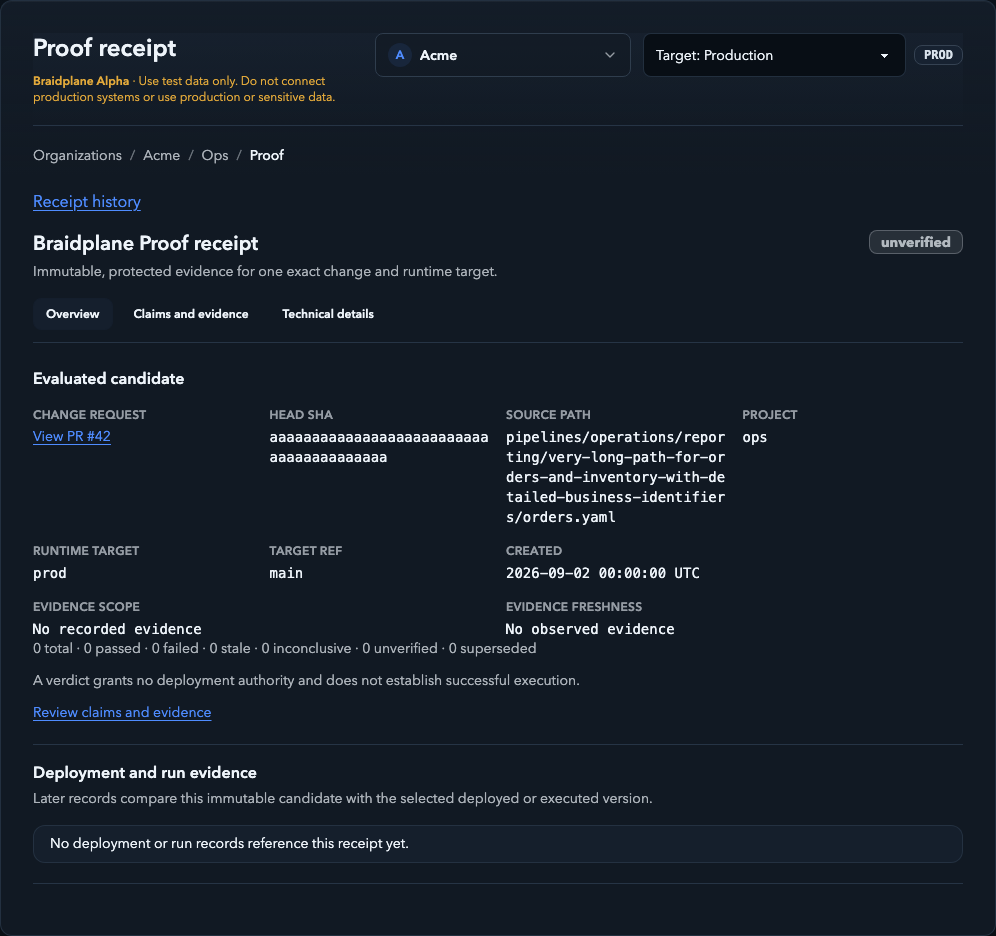
Receipt overview with synthetic data, captured locally on 6 October 2026.
The prod target is a fixture; this example has no observed evidence.
Understand evidence and results
Compare the evidence a claim requires with the evidence recorded in its receipt. For live evidence, check the observation time and scope.
| Recorded evidence | What it establishes |
|---|---|
| Static (metadata only) | Evaluation of authored/compiled material without a fresh provider call. |
| Cached observed | A previously observed provider fact, with observation and expiry times. |
| Live read-only | A fresh, explicitly authorized provider metadata observation within its approved scope. |
| No observed evidence | There is no recorded provider observation supporting the claim. |
The assessments described here use metadata. Bounded execution is a separate evidence level.
| Result | Meaning and next step |
|---|---|
passed |
Available evidence meets the claim's required level and supports it. Check its scope and freshness before deciding whether to apply the change. |
failed |
Evidence disproves the evaluated clause. Read its diagnostic and correct the relevant definition or binding. |
unverified |
Evidence is missing or the capability is unsupported. Identify the gap; retrying cannot add unsupported capability. |
inconclusive |
Evidence cannot decide the claim, for example because access was denied, a provider was unavailable, or a limit was reached. Resolve the diagnostic before a newly authorized assessment. |
stale |
Evidence has expired or is no longer valid. Arrange fresh evidence through the authorized path and inspect the new receipt. |
superseded |
A later receipt replaces this result. Open the result for the current candidate/evidence; keep the old receipt only as history. |
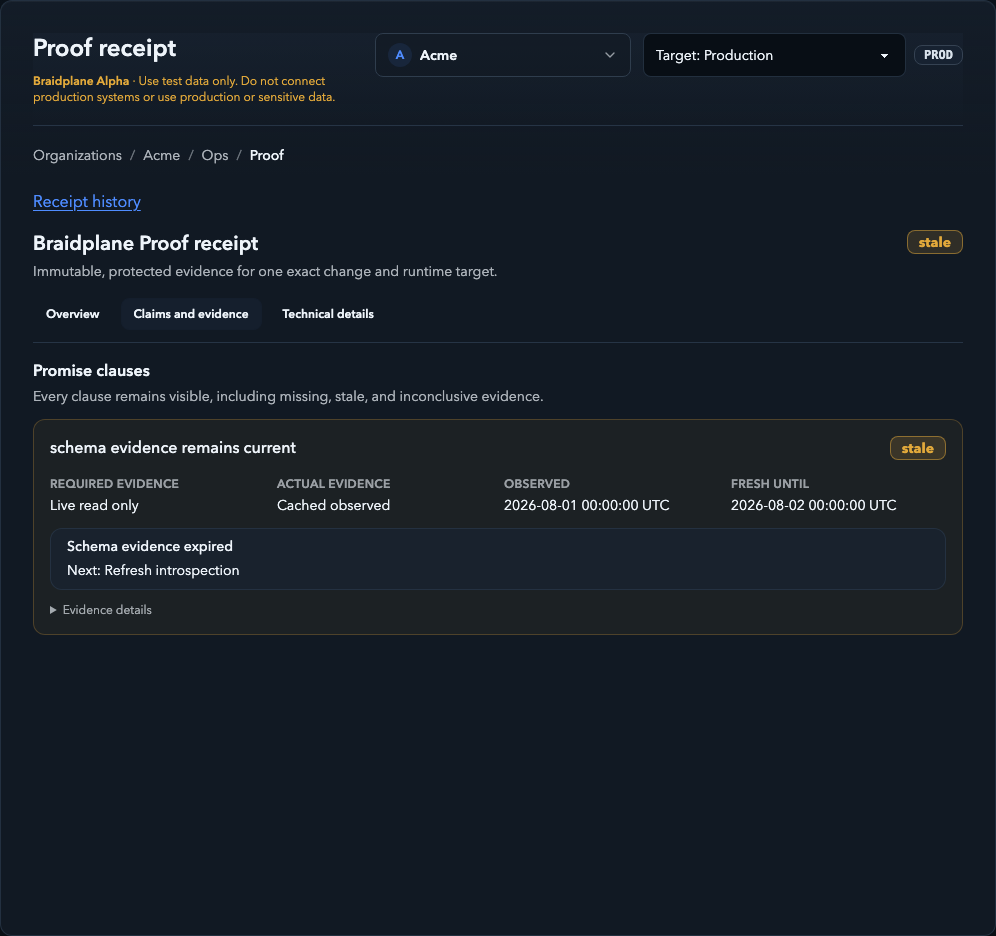
Claims with synthetic data, captured locally on 6 October 2026. The expired fixture dates show how stale evidence appears.
Inspect each claim's result and diagnostic. One receipt can contain passed, failed and unresolved claims.
Demonstrated Alpha connector scope
Live read-only metadata observations are available for the HubSpot/BigQuery pair when enabled by your workspace operator:
- HubSpot verifies the account identity and contact-property metadata. It does not read contact records, search CRM data, discover custom objects, or write.
- BigQuery verifies one selected table's identity and metadata. It does not run discovery, read table rows, start query jobs, or insert data.
These observations cover metadata for those two connectors. Check write permissions through the provider and inspect sink results after execution. Ask your workspace operator which live observations are enabled.
Follow the Git result
When publication is enabled and provider setup is ready, GitHub receives an informational Proof check on the exact evaluated PR head commit. The check contains a sanitized summary and a link to the protected receipt. Its neutral conclusion is informational; read the Proof verdict rather than treating the check conclusion as a passed assessment.
A newer receipt updates the same GitHub check. Retrying publication avoids duplicate checks, and the result shows stale or superseded evidence. Assess each new head commit separately.
GitLab receives an informational merge-request note identifying the evaluated head and linking to its protected receipt. A new head supersedes the earlier result, and retries avoid duplicate notes. The note is informational and leaves GitLab CI and merge controls unchanged. GitLab's recorded hosted tests used static receipts; live HubSpot/BigQuery observations on this path remain unverified.
Publication failure does not rewrite an immutable receipt. Inspect the workspace receipt if the provider result is unavailable, and have an authorized operator resolve publication setup or access. Neither provider result merges, applies, deploys, or runs a pipeline.
Access, retention, and sharing
Follow a receipt link while signed in to the correct workspace with pipeline-read permission for its project/environment. A Git result does not make the receipt public or grant workspace access. Signed-out readers are directed to sign in; insufficient permissions or a removed receipt can prevent access.
Deleting a project erases its detailed Proof records. Pending or running Proof does not prevent deletion; running work is cancelled and late results are discarded. The project deletion remains in the audit history. Deleting a project does not delete its organization data source.
Receipts have an effective retention limit of seven days; deletion can make an old link unavailable. Captured receipt content stays immutable until deletion, while freshness and supersession can change how it is presented.
Keep receipts and evidence details within the authorized workspace. Repository identity, paths, schemas, and diagnostics can be sensitive even when credentials and raw provider data are excluded. The screenshots in this guide use only synthetic local fixtures; they contain no customer data or provider payloads.
For pipeline authoring and the separate apply/deploy/run workflow, see How Braidplane works and Pipeline specifications.